| README.md | ||

CLI Essentials | dotnet
Prerequisites
Basic understanding of C# and how to create and manage solutions and projects in your IDE.
Run Through
dotnet new
https://learn.microsoft.com/en-us/dotnet/core/tools/dotnet-new
examples:
dotnet new sln -n MySolution
dotnet new console -n MyConsole
dotnet new nunit -n MyTests, ...
dotnet sln
dotnet sln add/remove <path-to-project>
dotnet build
dotnet build | grep " Error"
dotnet restore
Restores dependencies specified in your .csproj file.
dotnet user-secrets
watch my video
dotnet format
watch my video
DemoTime
dotnet restore and the NuGet.Config
Restores dependencies specified in your .csproj file.
NuGet.Config
When installing dotnet, we get a default NuGet.Config in the user path that points to https://api.nuget.org
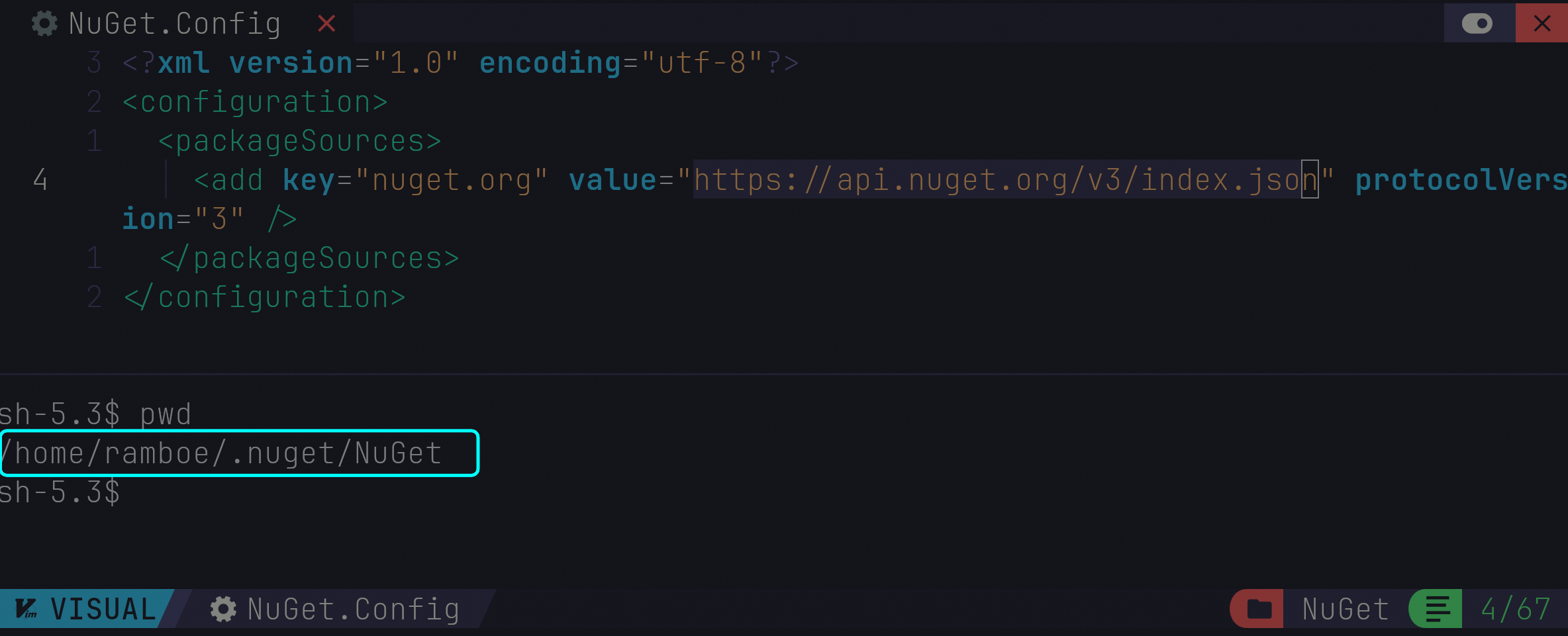
You can also provide project specific NuGet.Config files.
Search order
dotnet looks for the NuGet.Config in several places
- csproj root
- sln root
- user (on linux:
~/.nuget/NuGet/NuGet.Config) - machine (on linux:
/etc/opt/NuGet/Config)
You can find a list of the OS specific
Nuget.Configlocations here
Specifically set file paths set like so dotnet restore --configfile ~/.nuget/NuGet/NuGet.Config override any local Nuget.Config files
Package Sources
By default the NuGet.Config points to https://api.nuget.org, but you can also add custom package sources like so
<?xml version="1.0" encoding="UTF-8"?>
<configuration>
   <packageSources>
      <add key="nuget.org" protocolVersion="3" value="https://api.nuget.org/v3/index.json" />
      <add key="my-private-repo" value="https://my-private-repo.url" />
   </packageSources>
   <packageSourceCredentials>
      <my-private-repo>
         <add key="Username" value="USERNAME" />
         <add key="ClearTextPassword" value="PASSWORD" />
      </my-private-repo>
   </packageSourceCredentials>
</configuration>
Usually your private artifactory provider should come with instructions on how to set up your
NuGet.Configcorrectly, see jfrog as an example
Example from Above: UnitsNet
<Project Sdk="Microsoft.NET.Sdk">
	<PropertyGroup>
		<TargetFramework>net9.0</TargetFramework>
	</PropertyGroup>
	<ItemGroup>
		    <PackageReference Include="UnitsNet" Version="5.75.0" />
	</ItemGroup>
</Project>
c# code
using UnitsNet;

var length = Length.FromMeters(3);
Console.WriteLine(length.Feet); // 9.84252
dotnet add
Adds a unit package to your project, runs dotnet restore automatically
dotnet add package UnitsNet --version 5.75.0
bonus: dotnet test
The dotnet test command builds and runs your unit tests using the test framework configured in your project (like NUnit, xUnit, or MSTest).
It’s a simple, powerful way to validate your code right from the terminal — no IDE required.
dotnet test | grep line
This runs all tests and filters the output for lines containing “line” — handy if you just want to see failed test output or focus on a specific pattern.
dotnet test --collect:"XPlat Code Coverage" -- DataCollectionRunSettings.DataCollectors.DataCollector.Configuration.Format=cobertura,opencover
This command runs your tests and collects code coverage data using the built-in cross-platform collector.
The --collect:"XPlat Code Coverage" flag tells .NET to generate coverage reports in formats like Cobertura or OpenCover, which you can later visualize with tools such as ReportGenerator or Coverlet.
bonus: dotnet publish
the following command will publish your dotnet project as a container
dotnet publish --os linux --arch x64 /t:PublishContainer -c Release
for more information see the microsoft documentation