| README.md | ||

CLI Essentials w/zsh
Intro
zsh is a fast, Bash-compatible shell for your terminal; paired with Oh My Zsh you get easy themes and powerful plugins.
Quick Refresher: The Terminal
Is a program that displays a text interface and lets you interact with the shell (or other text-based programs). It’s basically a window into the command-line environment
Quick Refresher: The Shell
Is a command-line interpreter — the program that actually parses and executes the commands you type into your terminal.
The shell is the first layer of productivity that we encounter as soon as we open the terminal and this is why this video is the first one of the series
In this guide we gonna make your terminal faster and smarter in minutes.
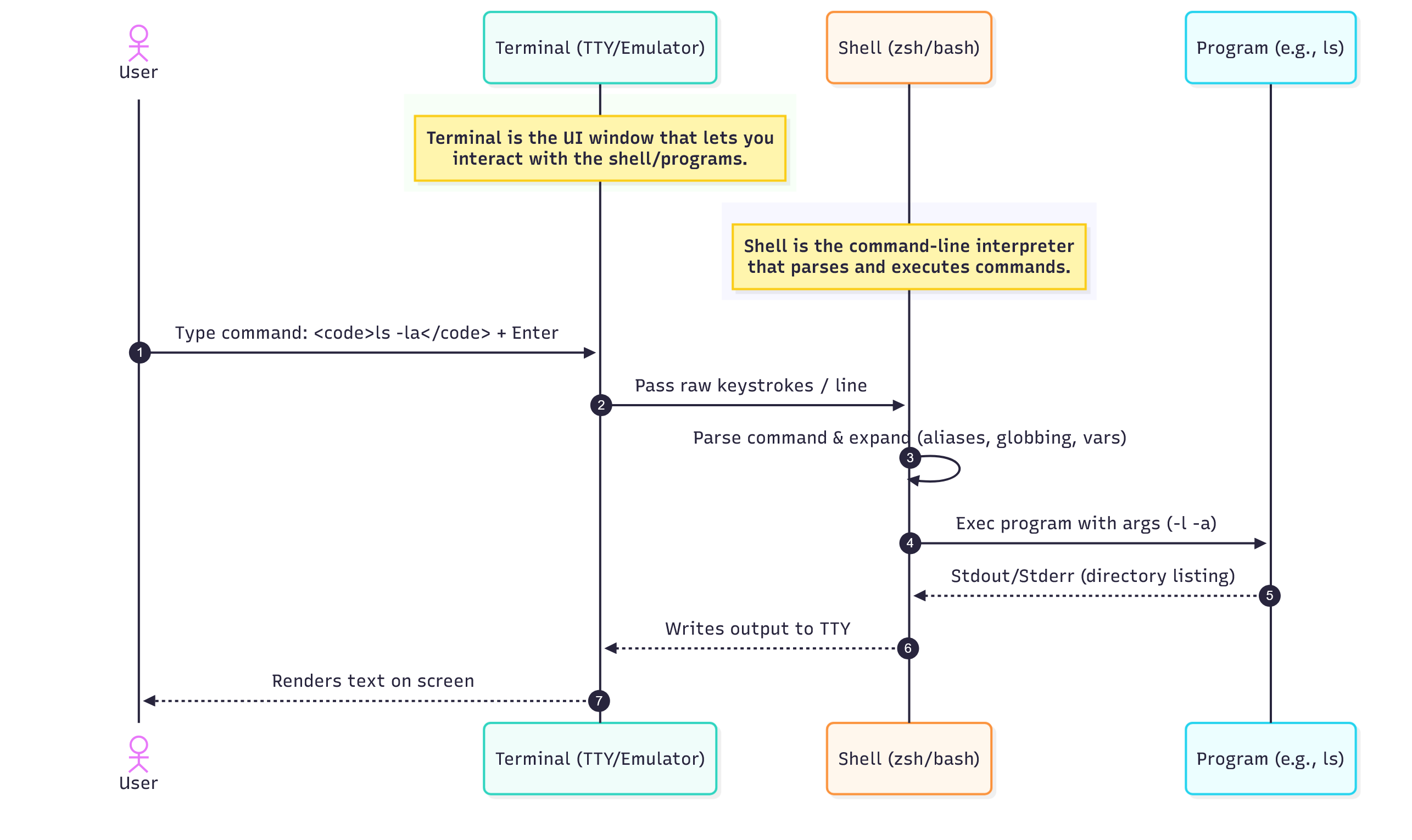
We are going to explore what you are going to do with zsh 90% of the time:
- Themes
- Auto Suggestions
- Auto Completions
- Vim Motions
Setup
Installation
sudo pacman -S zsh
here you find the command to install Oh My Zsh
sh -c "$(curl -fsSL https://raw.githubusercontent.com/ohmyzsh/ohmyzsh/master/tools/install.sh)"
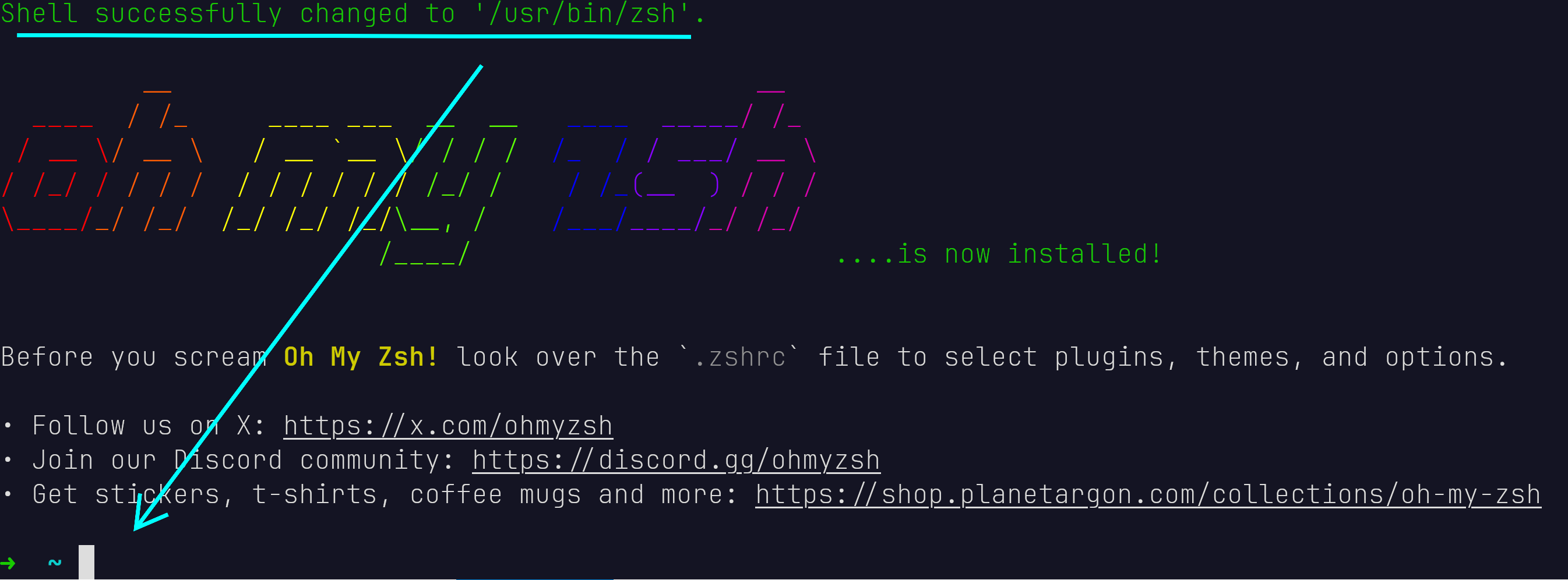
If successful you should see that your command line changed it's appearance
Configuration
PASTE these into your ~/.zshrc
export ZSH="$HOME/.oh-my-zsh"

ZSH_THEME="cypher"

plugins=(
    git
    zsh-autosuggestions
    zsh-vi-mode
)

source $ZSH/oh-my-zsh.sh

# ls aliases for convenienve
alias l='ls -lah'
alias la='ls -a'
alias lla='ls -la'
alias lt='ls --tree'

# Set-up FZF key bindings (CTRL R for fuzzy history finder)
source <(fzf --zsh)

HISTFILE=~/.zsh_history
HISTSIZE=10000
SAVEHIST=10000
setopt appendhistory

# enable ctrl+backspace
bindkey '^H' backward-kill-word
Then reload your .zshrc with
source .zshrc
Plugins
From now on basically everything we do with zsh is done with plugins.
We add plugins to oh-my-zsh by cloning them into the $ZSH_CUSTOM path like so:
git clone https://github.com/zsh-users/zsh-completions.git \
  ${ZSH_CUSTOM:-${ZSH:-~/.oh-my-zsh}/custom}/plugins/<your-plugin>
and then adding them to the plugins=() section of our .zshrc:
# ~/.zshrc

# ...

plugins=(
    <your-plugin>
)

# ...
Themes
simply edit the value of ZSH_THEME inside your ~/.zshrc according to the documentation.
https://github.com/ohmyzsh/ohmyzsh/wiki/themes
I like cypher
Auto Suggestions
We will use zsh-autosuggestions for this. When you start typing a command in the terminal, zsh fills the rest in for you.

In order to get auto suggestions based on your terminal history
-
put
zsh-autosuggestionsinto theplugins=()section of your~/.zshrcfile (as we did above) -
execute the following command in your terminal:
git clone https://github.com/zsh-users/zsh-autosuggestions ${ZSH_CUSTOM:-~/.oh-my-zsh/custom}/plugins/zsh-autosuggestions
you can navigate your auto suggestion history with your arrow keys.
Auto Completions
Completions add valid parameters to your command. There are four different ways to get completions in zsh.
-
auto completion out of the box (e.g. dotnet)
-
Completions loaded as dedicated plugin
-
Further Completions (example: az cli)
auto completion out of the box (e.g. dotnet)
The .NET CLI dynamically knows its options and arguments, so it doesn't ship static completion files.

zsh-completions
zsh-completions gathers new completion scripts that are not available in Zsh yet
Install with git like so
git clone https://github.com/zsh-users/zsh-completions.git \
  ${ZSH_CUSTOM:-${ZSH:-~/.oh-my-zsh}/custom}/plugins/zsh-completions
then update your .zshrc
# Add zsh-completions path
fpath+=${ZSH_CUSTOM:-${ZSH:-~/.oh-my-zsh}/custom}/plugins/zsh-completions/src

# Enable zsh’s Bash-style completion compatibility
autoload -U compinit && compinit

# ...

source $ZSH/oh-my-zsh.sh
"This prevents
compinitfrom being called twice and significantly improves shell startup time."
Explanation
-
fpathis an array variable that zsh uses to know where to look for autoloadable functions, including completion definitions. -
autoload -U compinit-
ignore my aliases while loading this function (compinit)
-
keeps your custom shortcuts from messing with how the function actually works.
-
-
compinit= activate zsh’s completion system and load all the_commandcompletion functions it can find.
Completions loaded as dedicated plugin
If a certain completion file is not contained in zsh-completions (e.g. docker), we might need to load a dedicated plugin for that.
In the moment we install oh-my-zsh, we get some completions already in the $ZSH_CUSTOM/plugins/<your-plugin>/completions path
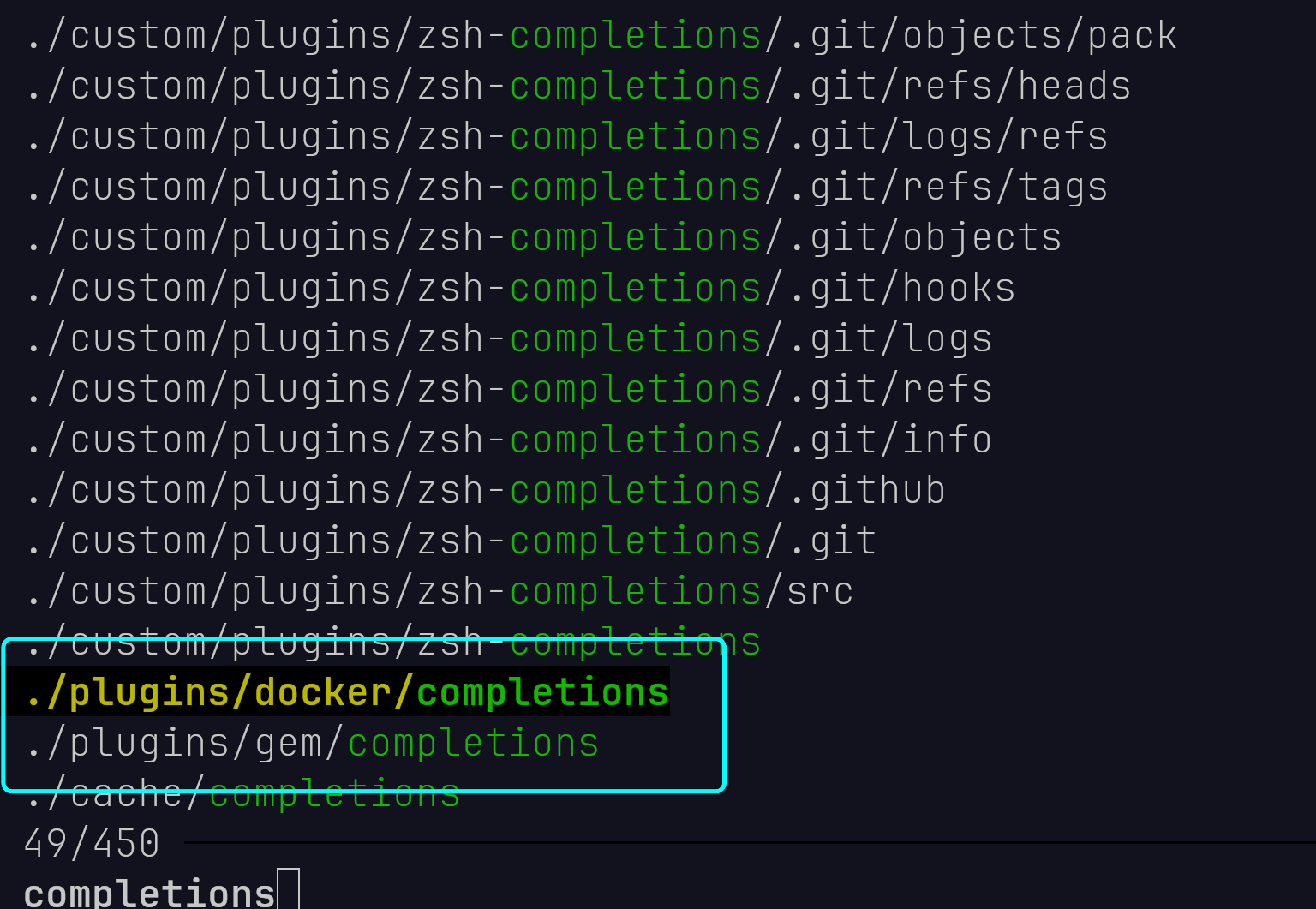
but those completions are not active until you explicitly load them

to fix this we have to load the docker plugin like so
# .zshrc

plugins=(
    ...
    docker
    ...
)
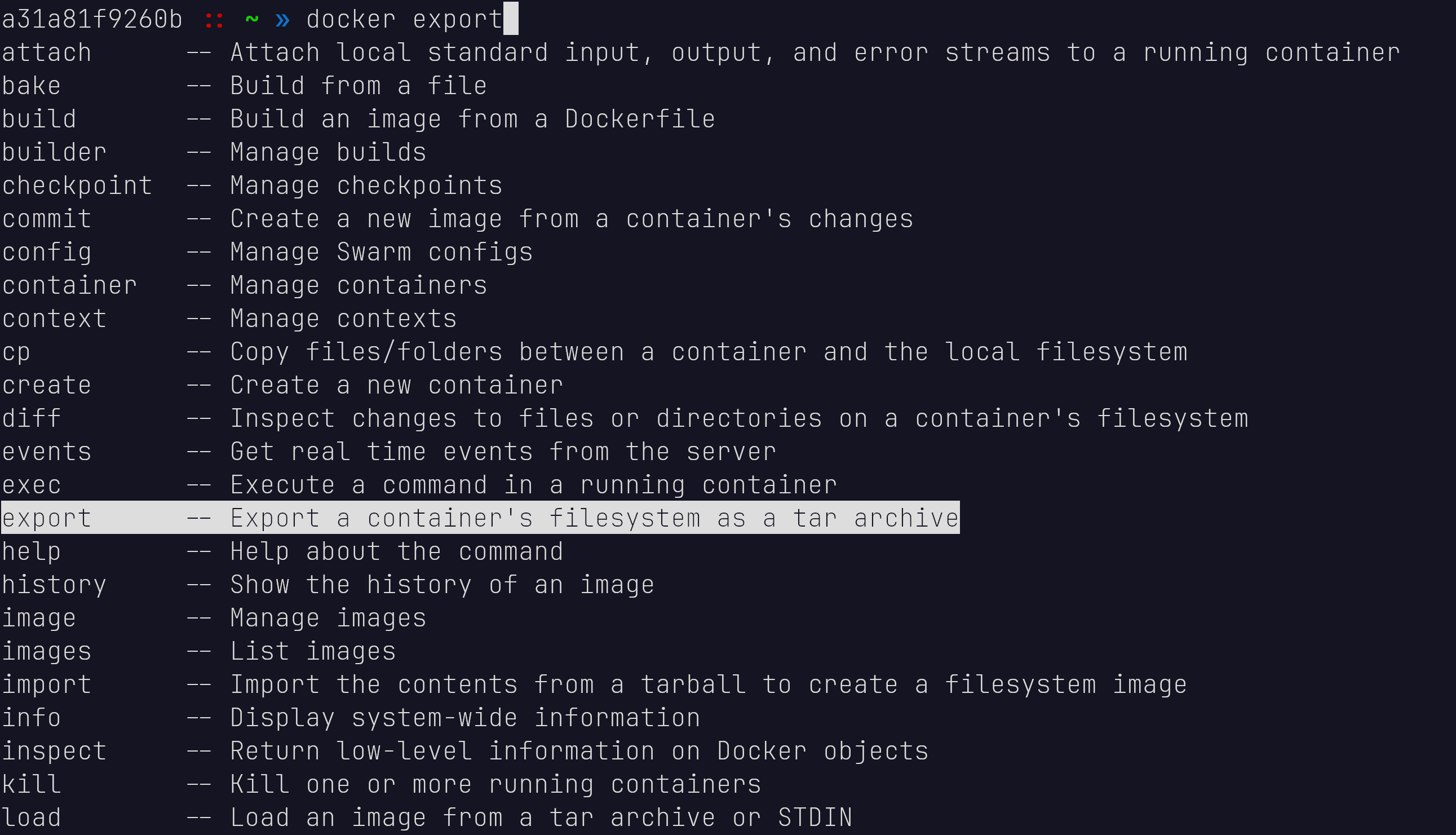
now we get the completions
Further Completions (example: az cli)
Some completions might not even be provided as plugin. In that case we have to load the completion file directly into the .zshrc
make sure azure-cli installed on your system for this example, for arch simply use
sudo pacman -S azure-cli
download completions file
curl -fsSL https://raw.githubusercontent.com/Azure/azure-cli/dev/az.completion \
  -o ~/.oh-my-zsh/custom/az.zsh
load the completion file into your .zshrc
# Enable zsh’s Bash-style completion compatibility
autoload -U compinit && compinit

# load az completions
source ~/.oh-my-zsh/custom/az.zsh

# ...

source $ZSH/oh-my-zsh.sh
in the case of the azure-cli you can indeed also install it as a plugin, it would then work the same way as in "Completions loaded as dedicated plugin"
Vim Motions
In order to bring vim motions into your terminal like so...

we need to
-
put
zsh-vi-modeinto theplugins=()section of your~/.zshrcfile (as we did above) -
clone the plugin into the
$ZSH_CUSTOMpath (as we did above with the other plugins):
Just as it is described on their github page
Further reading
-
The JaKooLit Arch-Hyprland install script comes with zsh as well