| README.md | ||

Your Terminal: From Ugly to Beautiful | NvChad, Kitty
We use NvChad's base46 theming system to change the look of syntax and UI in neovim. Although you can theoretically add base46 to your current neovim config independently from NvChad, I'd suggest you just use NvChad right away.
Preparation: Docker
This Dockerfile builds an Arch Linux–based development container with common CLI tools, Neovim (NvChad), .NET SDK, and a non-root user (ramboe) preconfigured for immediate use in a full-featured dev environment.
# Use Arch Linux as the base image
FROM archlinux:latest

# Update system and install required packages (added: tmux, python)
RUN pacman -Syu --noconfirm && \
    pacman -S --noconfirm \
        sudo \
        curl \
        git \
        fzf \
        ripgrep \
        unzip \
        wget \
        npm \
        dotnet-sdk \
        gcc \
        zsh \
        azure-cli\
        neovim \
        tmux \
        python3 \
        ca-certificates \
        && pacman -Scc --noconfirm

# Create a new user 'ramboe' with sudo privileges
RUN useradd -m -s /bin/bash ramboe && \
    echo "ramboe ALL=(ALL) NOPASSWD:ALL" >> /etc/sudoers

# Make bash the default shell for subsequent RUNs
SHELL ["/bin/bash", "-lc"]

# Switch to the new user
USER ramboe
ENV HOME=/home/ramboe
WORKDIR /home/ramboe

# Create common folders
RUN mkdir -p "$HOME/Downloads" "$HOME/Documents"

# --- Git setup (dotfiles) ---
RUN git clone https://github.com/NvChad/starter ~/.config/nvim

# --- Dotnet setup ---
WORKDIR /home/ramboe/Documents
RUN dotnet new console -n MyConsole
WORKDIR /home/ramboe/Documents/MyConsole
RUN dotnet build

# Return to home and default command
WORKDIR /home/ramboe
CMD ["/bin/bash"]
How do Themes Work in NvChad?
base46
nvchad comes with it's own theming system: base46 - every "theme" is really just a variation of values assigned to those properties.
Customizing Themes
"overriding or adding highlights"
Let's say you want certain styles applied on top of your theme.
The place to do that is lua/chadrc.lua which looks like this by default:
-- lua/chadrc.lua

-- This file needs to have same structure as nvconfig.lua
-- https://github.com/NvChad/ui/blob/v3.0/lua/nvconfig.lua
-- Please read that file to know all available options :(

---@type ChadrcConfig
local M = {}

M.base46 = {
        theme = "onenord",

        -- hl_override = {
        --      Comment = { italic = true },
        --      ["@comment"] = { italic = true },
        -- },
}

-- M.nvdash = { load_on_startup = true }
-- M.ui = {
--       tabufline = {
--          lazyload = false
--      }
-- }

return M
Where does
["@comment"] = { italic = true }come from? This is treesitter syntax and can be found here
ramboe's chadrc.lua
-- This file  needs to have same structure as nvconfig.lua
-- https://github.com/NvChad/NvChad/blob/v2.5/lua/nvconfig.lua

---@type ChadrcConfig
local M = {}


M.base46 = {

  theme = "chadracula-evondev",

  hl_override = {
    Type = { bold = true, italic = false },
    ["@comment"] = { italic = true },

    --- https://neovim.io/doc/user/treesitter.html#treesitter-highlight-groups

    ["@keyword"] = { italic = true },
    ["@function.method"] = { italic = true },
    ["@function.method.call"] = { bold = true }
  }
}

return M
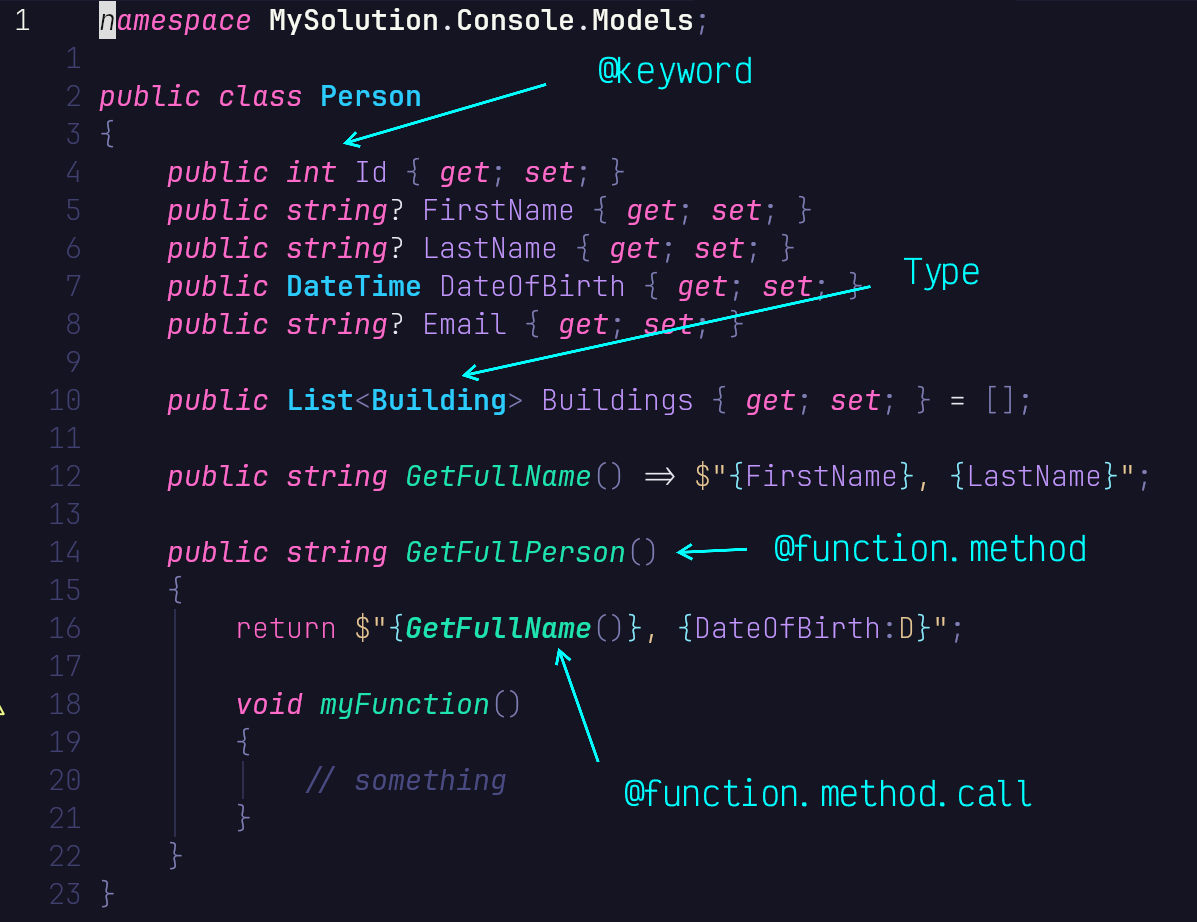
But what does bold, italic etc. actually mean? How bold can we actually get? How is this rendered in the terminal?
This is where kitty comes in.
Fonts - the face of the terminal
The terminal of choice: kitty
The fast, feature-rich, GPU based terminal emulator
Kitty terminal emulator just like Alacritty, Ghostty, Foot and many more. It is GPU based and the one that I prefer. Check out the official demo here.
Installing fonts
download ttf file from https://www.nerdfonts.com/
- Installation (linux): put into
~/.fonts/directory - Installation (mac): put into
~/Library/Fonts/directory - Installation (windows): right click > install
Configure Fonts in the Kitty Terminal
kitten choose-fonts
this then writes the font configuration directly into your kitty.conf:
# .config/kitty/kitty.conf

# BEGIN_KITTY_FONTS
# ...
# END_KITTY_FONTS
ramboe's kitty.conf
# /* ---- 💫 https://github.com/JaKooLit 💫 ---- */  #

# you can choose themes from $HOME/.config/kitty/kitty-themes/
include ./kitty-themes/00-Default.conf
font_size 20

background_opacity 1
dynamic_background_opacity 1
confirm_os_window_close 0

# change to x11 or wayland or leave auto
linux_display_server wayland

scrollback_lines 2000
wheel_scroll_min_lines 1

enable_audio_bell no

# window_padding_width 4
window_padding_width 0

selection_foreground ffffff
selection_background #FF00FF

foreground dddddd
background #141423 make this consistent with your nvchad theme

cursor dddddd

# BEGIN_KITTY_FONTS
font_family      family='JetBrainsMono Nerd Font' style=Thin
bold_font        auto
italic_font      family='JetBrainsMono Nerd Font' style='Light Italic'
bold_italic_font auto
# END_KITTY_FONTS
For the full list of kitty.conf settings, visit the documentation
Bonus Section
Diagnostic Messages
In order to get rid of those
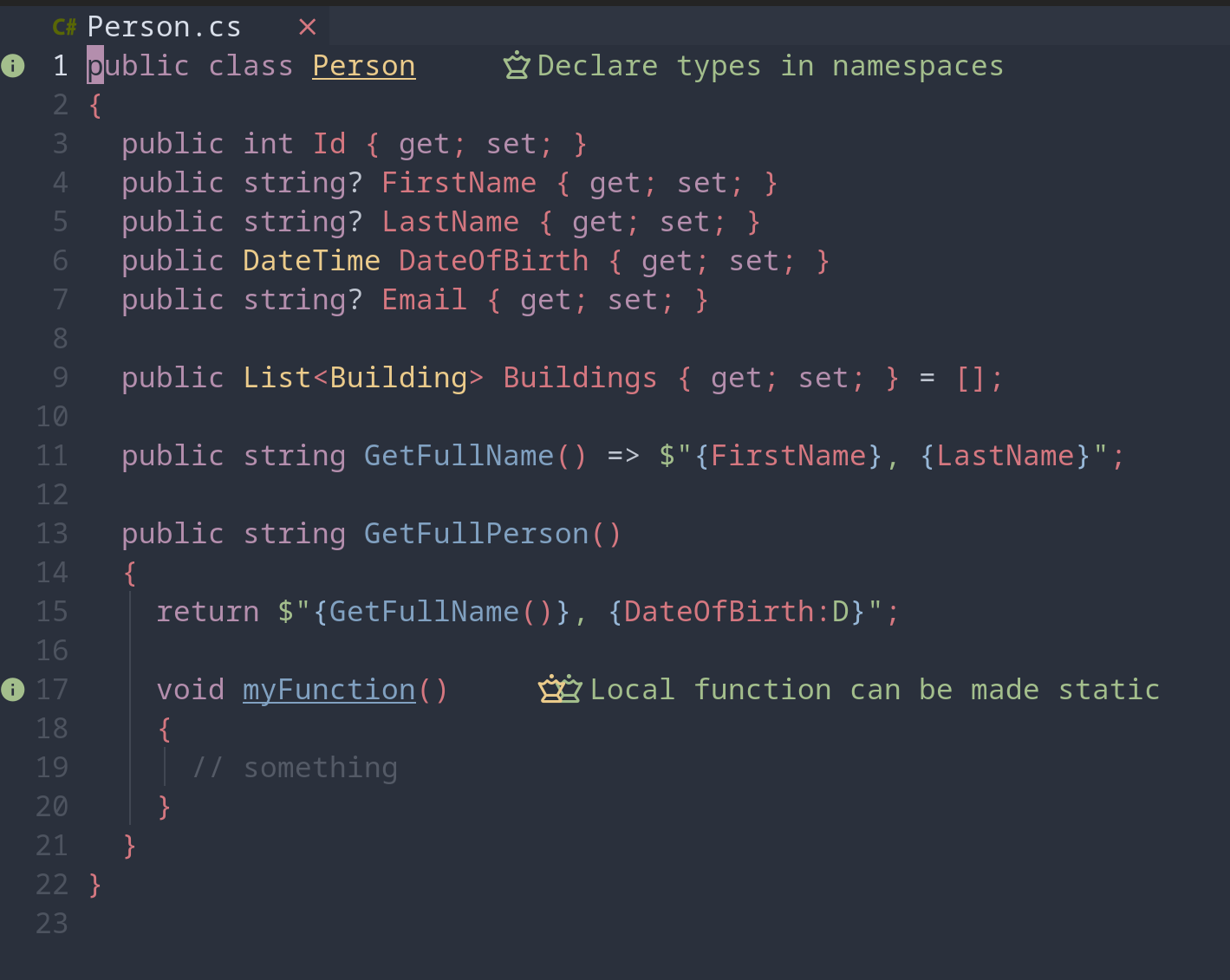
and make them look like those
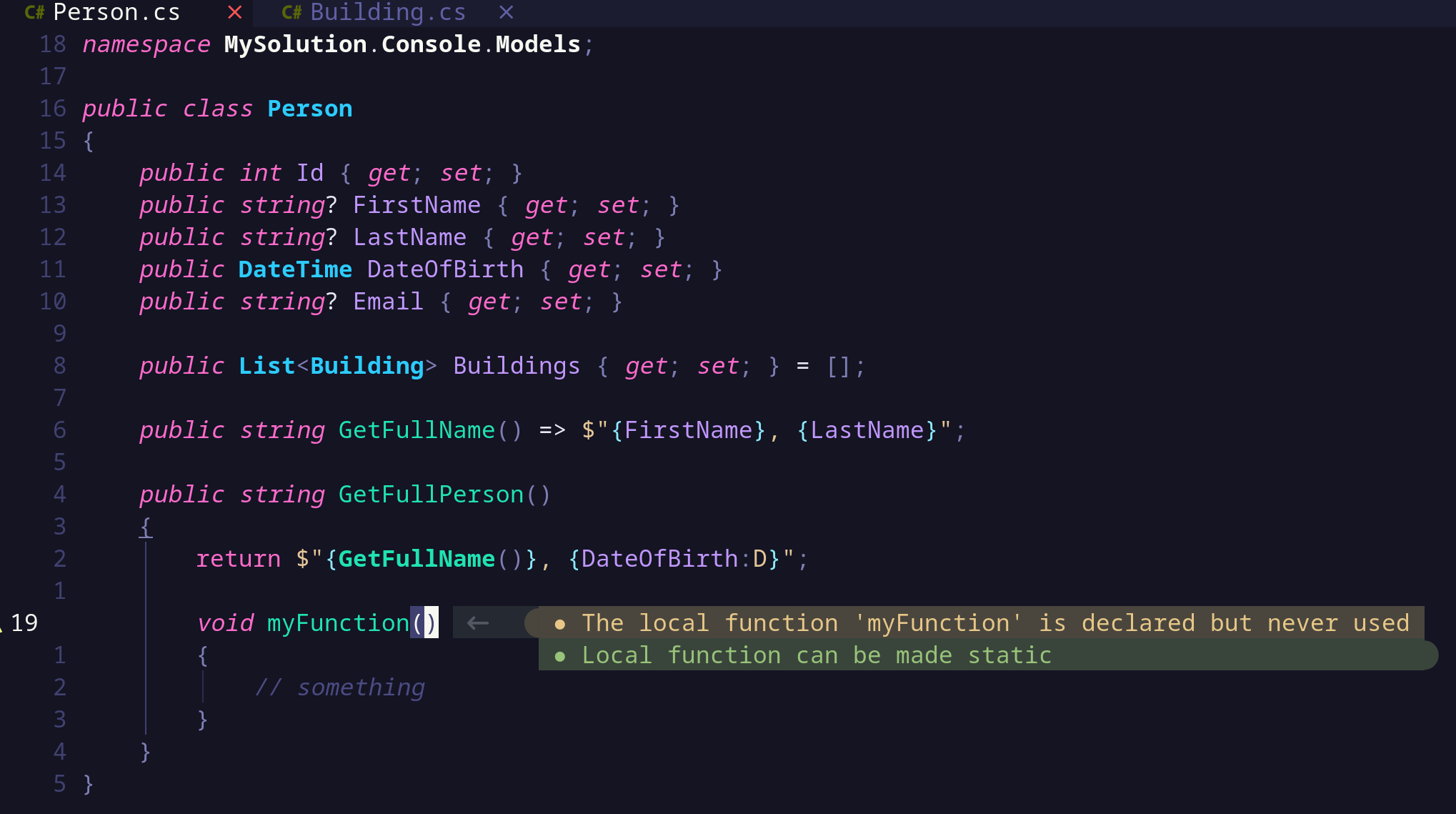
watch my video
Bonus: Animated Cursor
# kitty.conf

# ...

# Animated cursor
cursor_trail 1